Projects
A project encapsulates the application that is being deployed. Projects can run multiple processes, and expose multiple ports, but they operate from the same code.
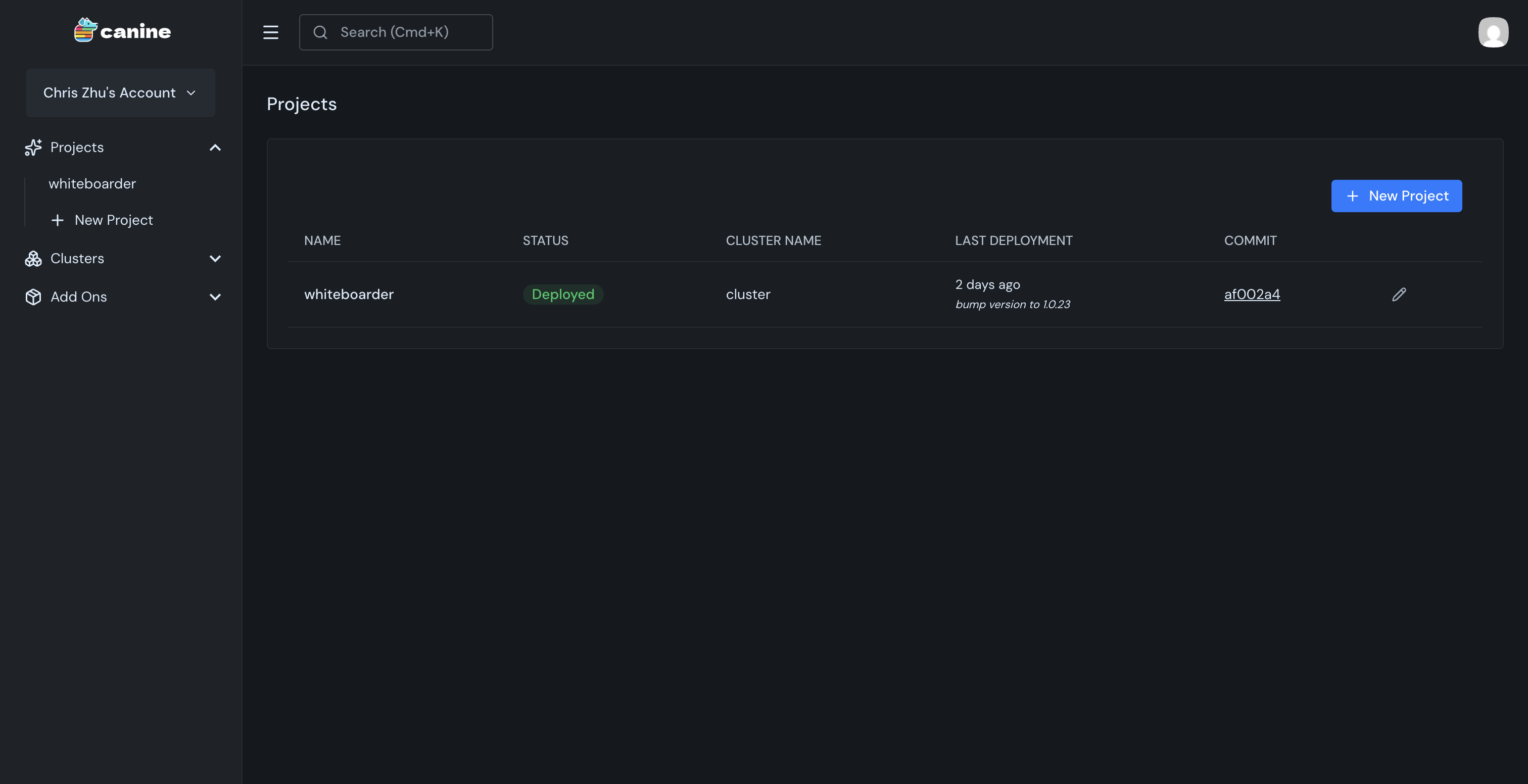
A project can be deployed from a Git repository or a container registry.
Creating a Project
- Click + New Project from the projects list
- Select your Git provider (GitHub, GitLab, or Bitbucket) and choose a repository
- Select the target cluster and configure:
| Setting | Default | Description |
|---|---|---|
| Branch | main | The Git branch to deploy from |
| Dockerfile Path | ./Dockerfile | Path to your Dockerfile |
| Build Context | . | Docker build context directory |
| Namespace | Auto-generated | Kubernetes namespace for the project |
| Auto-deploy | Enabled | Automatically deploy on new commits |
Project Settings
Deploy Commands
You can run commands before and after deployments:
- Pre-deploy command - Runs before the new version is deployed (e.g., database migrations:
bundle exec rails db:migrate) - Post-deploy command - Runs after the deployment completes
- Pre-destroy command - Runs before the project is destroyed
- Post-destroy command - Runs after the project is destroyed
Environment Variables
Navigate to Project > Environment Variables to manage configuration:
- Config values are stored as Kubernetes ConfigMaps (visible in plain text)
- Secret values are stored as Kubernetes Secrets (masked in the UI)
You can download all environment variables as a .env file for local development.
Automatic Build Arguments
Canine automatically injects the following build arguments into every build:
| Variable | Description |
|---|---|
GIT_SHA | The Git commit SHA being built |
BUILD_TIMESTAMP | UTC timestamp of when the build started (ISO 8601) |
These are available as Docker build arguments. To use them at runtime, add the following to your Dockerfile:
ARG GIT_SHA
ARG BUILD_TIMESTAMP
ENV GIT_SHA=$GIT_SHA
ENV BUILD_TIMESTAMP=$BUILD_TIMESTAMP
For buildpack-based builds, these are automatically set as environment variables.
Preview Apps
When enabled, Canine automatically creates a temporary deployment for each pull request. See Preview Apps for detailed configuration.
Restarting
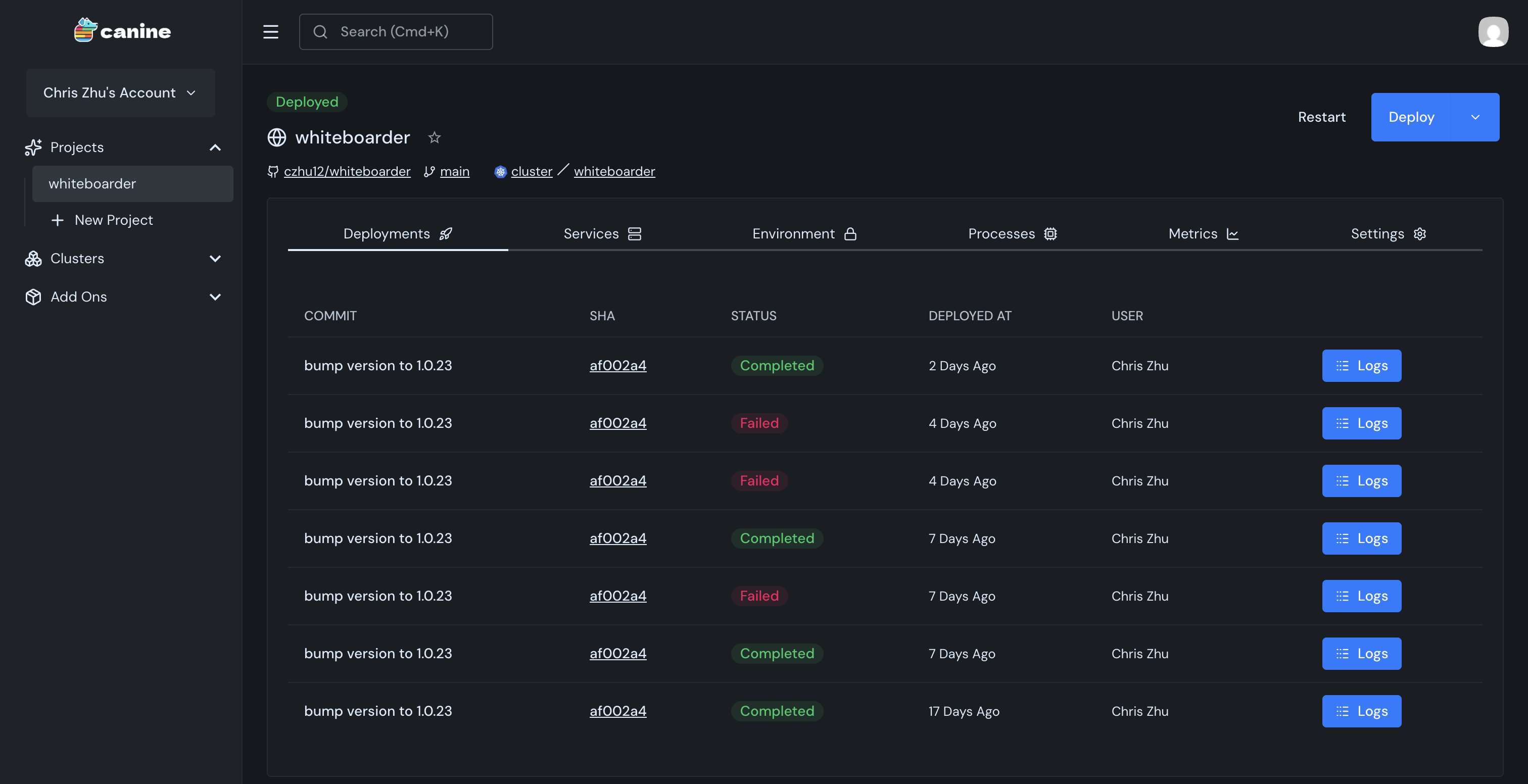
Click Restart to perform a rolling restart of all services in the project without triggering a new build.
Project Status
Projects track their current deployment status. You can view deployment history under the Deployments tab, including commit details, build logs, and deployment manifests.