Cluster Mode
Deploy Canine directly inside your Kubernetes cluster. In this mode, Canine runs as a pod and automatically connects to the cluster it's deployed in.
Prerequisites
- A running Kubernetes cluster (v1.24+)
kubectlconfigured to access the cluster- Helm 3 installed
Step 1: Install with Helm
helm repo add canine https://caninehq.github.io/charts
helm repo update

helm install canine canine/canine \
  --namespace canine \
  --create-namespace
This installs Canine along with PostgreSQL, Traefik (ingress controller), and cert-manager (for automatic TLS). If you already have any of these, see the Helm chart README for how to disable them.
Step 2: Set Up DNS
Get the load balancer IP assigned by Traefik:
kubectl get svc -n canine -l "app.kubernetes.io/name=traefik" \
  -o jsonpath="{.items[0].status.loadBalancer.ingress[0].ip}"
Create an A record in your DNS provider pointing your domain to that IP:
| Type | Name | Value |
|---|---|---|
| A | canine.yourdomain.com | <LOAD_BALANCER_IP> |
Then upgrade your Helm release with ingress enabled:
helm upgrade canine canine/canine \
  --namespace canine \
  --set ingress.enabled=true \
  --set ingress.hostname=canine.yourdomain.com \
  --set canine.acmeEmail=you@yourdomain.com  # Used to register your SSL certificate with Let's Encrypt
Once DNS propagates, cert-manager will automatically issue a TLS certificate and Canine will be available at https://canine.yourdomain.com.
You can skip this step and use port forwarding instead:
kubectl port-forward -n canine svc/canine 3000:3000
Then open http://localhost:3000.
Step 3: Onboard
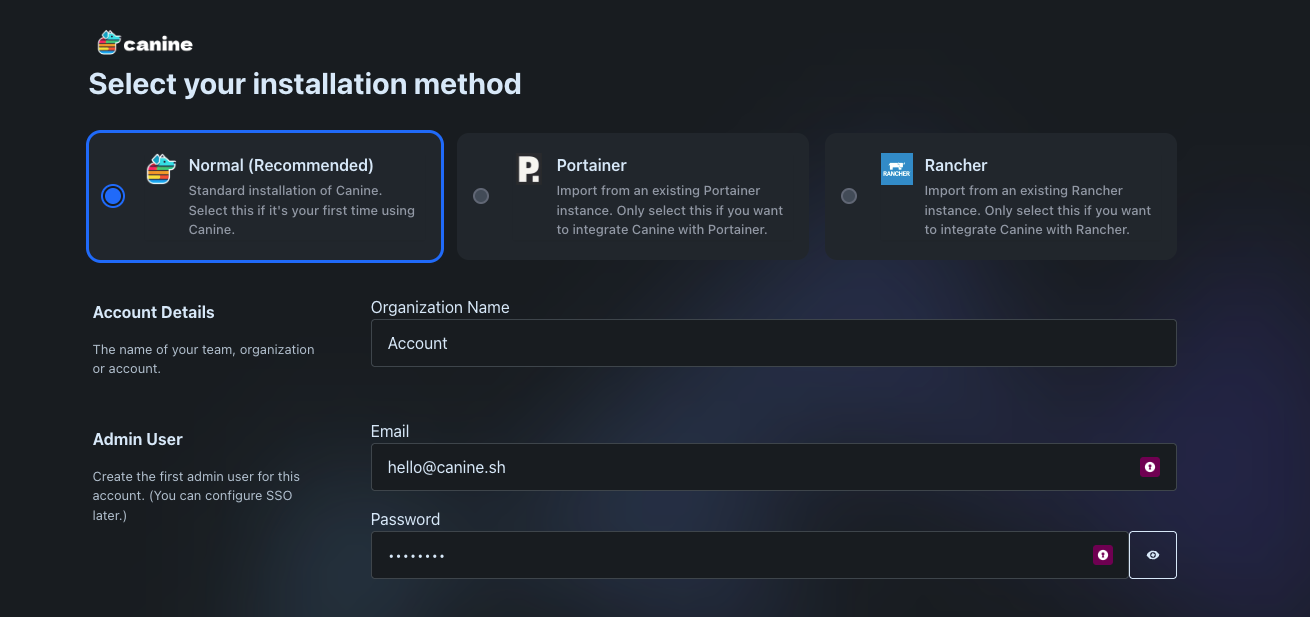
Select Normal (Recommended) as the installation method. You'll be asked to create an organization name and admin user.
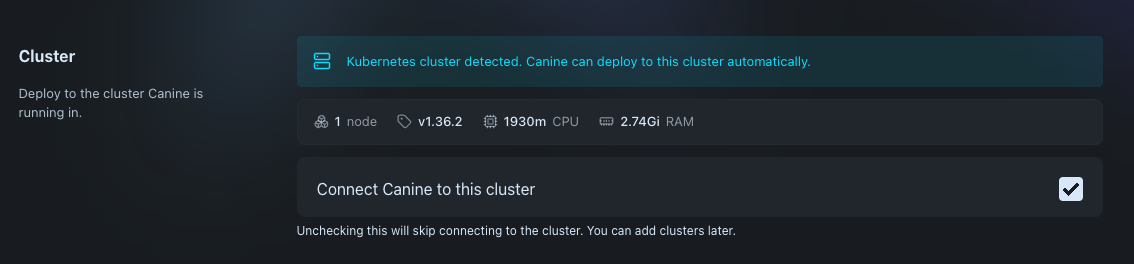
Since Canine is running inside a cluster, you'll see a "Kubernetes cluster detected. Canine can deploy to this cluster automatically." message along with your cluster's nodes and version. The "Connect Canine to this cluster" checkbox will be enabled by default — this lets Canine automatically connect to the in-cluster Kubernetes API without needing a kubeconfig.
You'll also see an option to "Install Build Cloud on this cluster", which sets up the components needed to build container images directly in your cluster.

Click Get Started to complete onboarding.
This onboarding screen only appears once — when no users exist in the system. After the first admin user is created, sign-up is disabled and this screen will no longer be accessible. Additional users can be added directly through the app via Team Members > + Add Team Member.
Next Steps
- For full Helm chart configuration and values, see the Helm chart documentation.
- To add users, go to Team Members > + Add Team Member.